
CWS-CARES Public Library
How to Use the Microsoft Teams Q&A Feature
The Q&A feature in Microsoft Teams is used by the Project for large webinars like the Stakeholder Briefing. Attendees can easily ask questions, add emoji reactions, and upvote posts with Teams Q&A. Below is a brief introduction on how to use this tool.
Accessing Teams Q&A
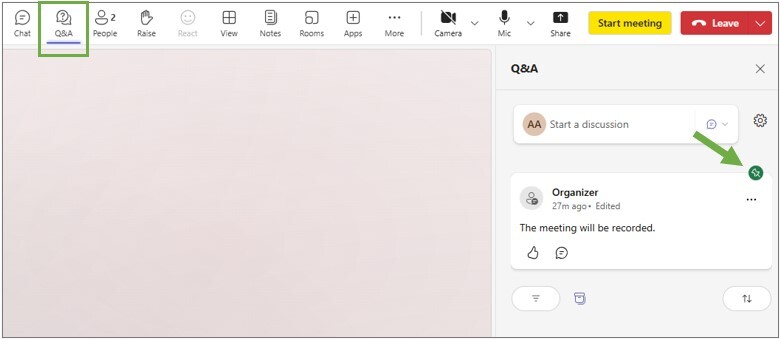
The teams Q&A button is located on the menu bar across the top of the screen, next to the Chat feature (note: the chat feature may be disabled in webinars where the Project uses Q&A). Clicking on the Q&A button will open a side panel on the right side of the screen. Here, attendees can ask questions, start discussions, and view the archive of posts from the webinar.
Pinned Posts
At the top of the thread, attendees will see posts pinned by the organizers of the meeting. They may contain announcements or resources applicable to all attendees. Pinned posts will show a green pin on the top right corner and will remain at the top of the thread throughout the meeting.
Asking Questions and Starting Discussions
To ask a question, select “Ask a Question” from the dropdown, then click “Publish”. Attendees can also “Start a Discussion” to add comments that do not require a response (i.e. requests for troubleshooting).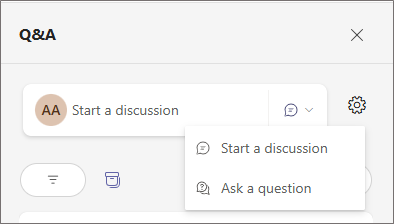
Best Answer Feature
Questions that have been answered or vetted by CWS-CARES Subject Matter Experts (SMEs) will be marked with the “Best Answer” check mark.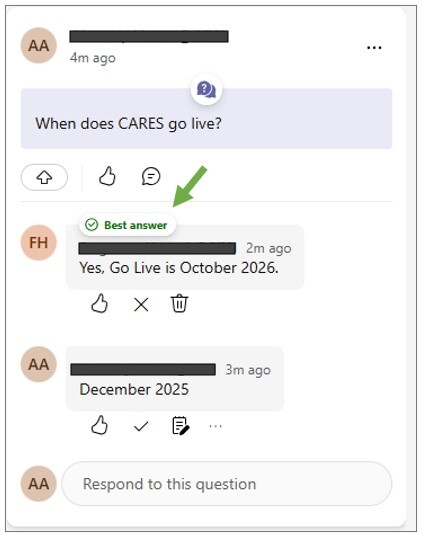
Reactions and Participation
Attendees can react to posts with emojis or with upvotes by clicking the blue arrow icon in the bottom left corner.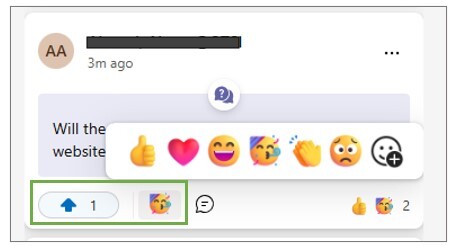
Moderation Settings
Depending on the webinar, the Project may turn on additional moderation features which limit the amount of questions in the main thread. If these settings are enabled, there may be a delay in seeing your question appear while a SME generates a response.For additional support with Microsoft Teams or to request accommodations for a virtual meeting, please contact Customer Relations at CWS_CustRel@osi.ca.gov.